
Does PrintShop 23 Work on Windows 11
PrintShop 23 was not designed for Windows 11, and most users experience crashes, installation failures, or missing features when they try to run it. The software was built for older Windows environments, and Microsoft's architecture changes create real barriers.
That matters if you have existing PrintShop projects you need printed, especially on a deadline. Compatibility workarounds exist, but they are not guaranteed.
This guide covers what works, what does not, and when skipping the software fix entirely and using a professional print service is the faster path to finished prints.
What Is PrintShop 23 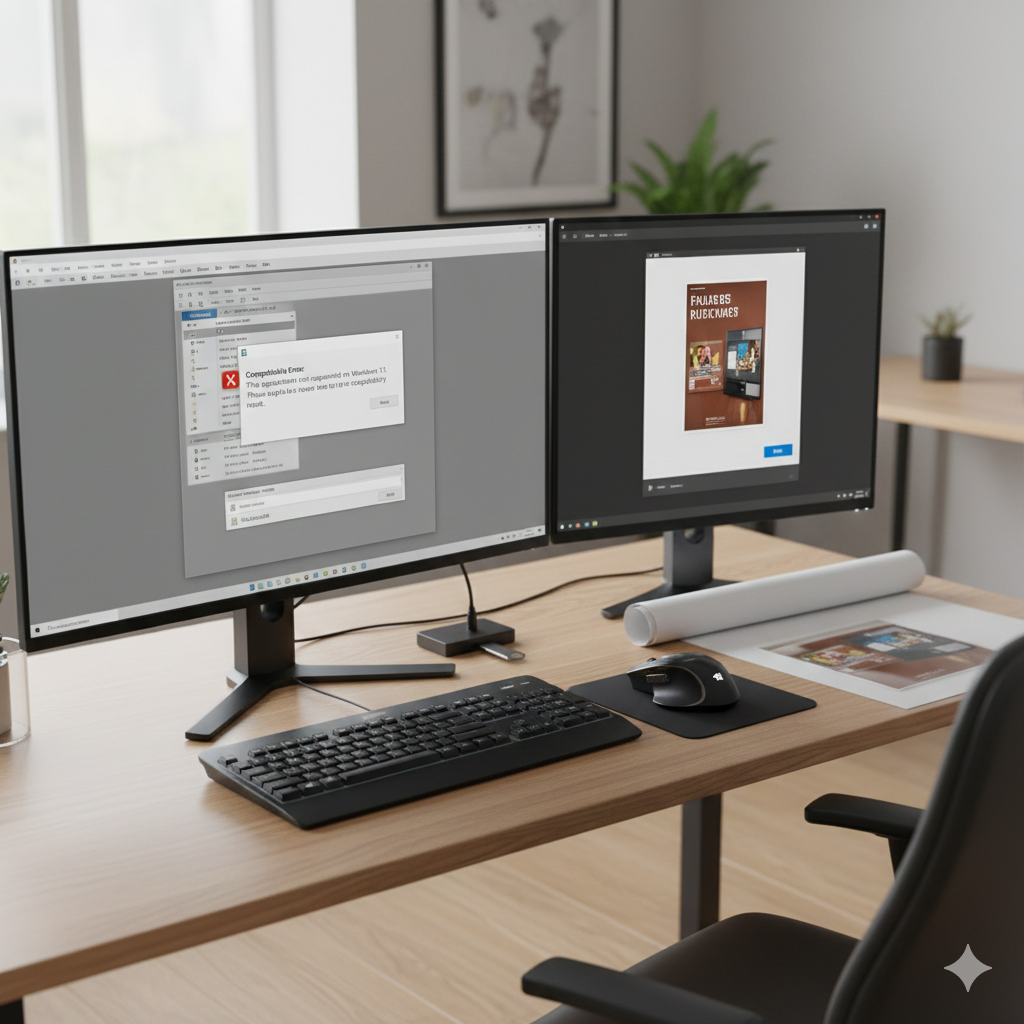
PrintShop 23, part of Broderbund's The Print Shop product line, is a desktop publishing program that lets users create greeting cards, banners, posters, signs, calendars, and other printed materials using built-in templates and clip art. It was popular with home users and small businesses who needed simple design tools without learning professional software like Adobe InDesign or CorelDRAW.
The Print Shop series dates back to the 1980s and went through dozens of versions. PrintShop 23 (sometimes called The Print Shop 23 or The Print Shop Deluxe 23) was released during the Windows XP and Windows Vista era, which is the root of today's compatibility problems.
Key Features of The Print Shop Software
PrintShop 23 included a template library for common print projects, a drag-and-drop layout editor, built-in clip art and photo editing tools, and support for standard paper sizes. Users could design business cards, flyers, letterheads, CD labels, and iron-on transfers.
The appeal was simplicity. You did not need graphic design experience. You picked a template, customized the text and images, and printed directly from the application. For its time, it handled most home and small-office printing needs.
Original System Requirements for PrintShop 23
PrintShop 23 was built for a specific generation of Windows operating systems. Its official requirements included:
Operating System: Windows XP (SP2 or later) or Windows Vista
Processor: Pentium III 600 MHz or faster
RAM: 256 MB minimum
Hard Drive Space: 1 GB available
Display: 1024 x 768 resolution
Printer: Any Windows-compatible inkjet or laser printer
These specs reflect hardware and software standards from the mid-2000s. Windows 11 runs on fundamentally different architecture, which is why compatibility breaks down.
Does PrintShop 23 Run on Windows 11
The short answer is no, not reliably. PrintShop 23 was never updated for Windows 10 or Windows 11. Broderbund (later acquired by Encore Software) discontinued active development and support for this version years ago. There is no official patch, update, or Windows 11 compatible release.
Some users report partial success getting the installer to run, but the software frequently crashes during use, fails to recognize printers, or produces corrupted output files. The experience is inconsistent and depends heavily on your specific Windows 11 build, hardware drivers, and system configuration.
If you need dependable results for a print project, treating PrintShop 23 as incompatible with Windows 11 is the safest assumption.
Known Compatibility Issues With Windows 11
The most common problems users encounter include:
Installer fails to complete. The setup wizard may freeze, throw error codes, or refuse to launch entirely. Windows 11's security features, including SmartScreen and driver signature enforcement, often block older installers.
Application crashes on launch. Even when installation succeeds, PrintShop 23 may crash immediately or after loading a project. This typically relates to missing or incompatible Visual C++ runtime libraries and DirectX components the software depends on.
Printer not detected. PrintShop 23 uses legacy print drivers and APIs that Windows 11 no longer supports natively. Your printer may work perfectly with every other application but remain invisible inside PrintShop.
Graphics rendering errors. Templates, clip art, and custom images may display incorrectly, with missing elements, color shifts, or distorted layouts.
File save and export failures. Some users report that projects save but cannot be reopened, or that exported files (PDF, JPG) are blank or corrupted.
These are not edge cases. They represent the typical experience when running software designed for Windows XP on a modern 64-bit operating system with entirely different driver models and security protocols.
What Happens When You Install PrintShop 23 on Windows 11
The installation process itself is where most users hit the first wall. Windows 11 may flag the installer as unrecognized or potentially unsafe because it lacks a modern digital signature. If you bypass that warning, the installer may still fail because it looks for system components that no longer exist in Windows 11.
Users who do get past installation often find that the program opens but behaves unpredictably. Buttons may not respond, menus may render incorrectly, and the print preview function frequently does not match actual output. The software was never tested against Windows 11's display scaling, font rendering, or print spooler, so visual and functional glitches are expected.
The bottom line: even a "successful" installation does not mean a functional one.
How to Get PrintShop 23 Working on Windows 11
If you are committed to trying, there are three approaches that have worked for some users. None are guaranteed, and all require some technical comfort.
Running PrintShop 23 in Compatibility Mode
Windows 11 includes a built-in compatibility mode that lets you run older software under emulated conditions from previous Windows versions.
Right-click the PrintShop 23 installer (.exe file) and select Properties.
Go to the Compatibility tab.
Check Run this program in compatibility mode for: and select Windows XP (Service Pack 3).
Check Run this program as an administrator.
Click Apply, then OK.
Run the installer.
After installation, apply the same compatibility settings to the main PrintShop 23 application file (usually found in C:\Program Files or C:\Program Files (x86)).
This works for some users but not all. If the software still crashes, compatibility mode alone is not enough.
Installing Missing Drivers and Components
PrintShop 23 depends on older runtime libraries that Windows 11 may not include by default. Try installing these before running the software:
Microsoft Visual C++ 2005 Redistributable (both x86 and x64 versions)
Microsoft .NET Framework 3.5 (enable through Windows Features in Control Panel)
DirectX End-User Runtime (the legacy web installer from Microsoft)
You can find these on Microsoft's official download pages. Installing them provides the background components PrintShop 23 expects to find on your system.
After installing, restart your computer and try launching PrintShop 23 again with compatibility mode enabled.
Using a Virtual Machine as a Workaround
The most reliable method for running PrintShop 23 on modern hardware is to use a virtual machine (VM) running Windows XP or Windows 7. A VM creates a separate, isolated operating system environment inside your Windows 11 computer.
Options include:
Oracle VirtualBox (free)
VMware Workstation Player (free for personal use)
Microsoft Hyper-V (built into Windows 11 Pro and Enterprise)
You will need a valid Windows XP or Windows 7 installation disc or ISO file. Install the older operating system inside the VM, then install PrintShop 23 within that environment. The software will run as if it is on its original operating system.
The downside: VMs require technical setup, consume system resources, and printing from inside a VM to your physical printer requires additional configuration. For a one-time project, this may be more effort than the project is worth.
Modern Alternatives to PrintShop 23
If your goal is to design and print materials, not to preserve PrintShop 23 specifically, modern software options deliver better results with full Windows 11 support.
Free and Paid Design Software Options
Several programs replicate what PrintShop 23 offered, with updated templates, better export options, and native Windows 11 compatibility:
Canva (free tier available, browser-based): Templates for posters, flyers, business cards, signs, and social media graphics. No installation required.
Microsoft Publisher (included with Microsoft 365): Desktop publishing with templates for print materials. Familiar interface for Windows users.
Adobe Express (free tier available): Simplified design tool from Adobe with print-ready export options.
Lucidpress (now Marq, free tier available): Online layout tool designed for print and digital materials.
GIMP (free, open source): Advanced image editing for users who need more control over graphics and layouts.
For most users who relied on PrintShop 23 for basic print projects, Canva or Microsoft Publisher will cover every use case with less friction and better output quality.
When Professional Printing Services Make More Sense
Here is the reality many PrintShop users face: they spend hours troubleshooting software compatibility when their actual goal is a finished printed product. A poster for an event. Business cards for a meeting. A banner for a storefront.
If you already have a design, even one created in PrintShop 23 on an older computer, you can export it as a PDF or image file and hand it off to a professional print shop. If you do not have a design yet, many print service providers offer design assistance or templates.
Professional printing eliminates the software problem entirely. You get higher print quality, access to materials and sizes your home printer cannot handle, and a finished product without debugging 20-year-old software.
How to Print Your PrintShop Projects Without a Printer
Whether your PrintShop 23 project is already designed or you are starting fresh, getting it printed professionally is straightforward once you understand what print shops need from you.
File Formats That Print Shops Accept
Most professional print providers accept these standard file formats:
PDF (preferred): Preserves fonts, layout, and image quality across all systems. If you can export your PrintShop project as a PDF, this is the best option.
JPEG/JPG: Widely accepted for photo-based prints, posters, and simple graphics. Use the highest quality setting available.
PNG: Good for graphics with transparent backgrounds or sharp text.
TIFF: High-quality format preferred for large-format printing and professional graphics.
AI/EPS/PSD: Accepted by full-service print shops for editable vector and layered files.
If PrintShop 23 only lets you save in its proprietary format (.psp or similar), you may need to open the file on a computer where the software works and re-export it as a PDF or JPEG before bringing it to a print shop.
Preparing Your Files for Professional Printing
A few preparation steps ensure your project prints correctly the first time:
Resolution matters. For sharp prints, your images should be at least 300 DPI (dots per inch) at the final print size. A file that looks fine on screen at 72 DPI will appear blurry when printed on paper or a banner.
Check your dimensions. Confirm that your file dimensions match the size you want printed. A file designed for 8.5" x 11" will not scale cleanly to a 24" x 36" poster without quality loss.
Embed your fonts. If you export to PDF, make sure fonts are embedded. Otherwise, the print shop's system may substitute a different font, changing your layout.
Use CMYK color mode if your software supports it. Printers use CMYK (cyan, magenta, yellow, black), not RGB (red, green, blue). Colors may shift if you design in RGB and print in CMYK.
Add bleed if needed. For prints that go edge-to-edge, add 0.125" of bleed (extra image area beyond the trim line) so nothing gets cut off.
If any of this feels unfamiliar, a full-service print provider can review your file and flag issues before printing.
Walk-In and Online Printing Options in Dallas
Dallas has multiple options for getting print projects produced quickly, whether you need a single document or a large batch of signs and posters.
Walk-in printing is the fastest path for urgent jobs. You bring your file on a USB drive or send it via email, and many shops can print standard documents and posters while you wait. This is ideal for students, remote workers, and anyone who needs something printed today.
Online upload and ordering lets you submit files from home or the office, choose your specifications (size, paper stock, quantity, finishing options), and pick up your order or have it delivered. This works well for planned projects where you want to review a proof before committing.
Full-service providers handle everything from file review and design adjustments to printing on specialty materials, mounting, laminating, and installing. If you need custom signage, large-format graphics, or trade show materials, a full-service shop saves significant time compared to DIY approaches.
For Dallas-area customers, AlphaGraphics Dallas offers walk-in service, online file submission, and full design-to-print support for documents, posters, banners, signs, and large-format graphics.
Why Local Print Services Save Time Over DIY Software Fixes
The time you spend troubleshooting PrintShop 23 on Windows 11 has a real cost. Between researching fixes, installing compatibility patches, testing virtual machines, and re-exporting files, a project that should take 30 minutes can consume an entire afternoon.
A local print service eliminates that entire troubleshooting cycle. You bring your file or describe what you need, and the provider handles production using professional equipment and current software.
Fast Turnaround for Posters Signs and Documents
Most print shops offer same-day or next-day turnaround for standard jobs. Document printing, basic posters, and business cards are typically ready within hours. Larger projects like custom signs, banners, and large-format graphics may take one to three business days depending on materials and finishing.
Compare that to the unpredictable timeline of getting legacy software to cooperate with a modern operating system. Professional turnaround times are defined and reliable.
Expert File Review and Print-Ready Guidance
One of the most valuable services a professional print provider offers is pre-print file review. A technician checks your file for resolution issues, color mode problems, font embedding, and dimension mismatches before anything goes to press.
This catches errors that would otherwise result in wasted prints and wasted money. If your file was created in PrintShop 23 and exported under less-than-ideal conditions, a file review is especially important.
At AlphaGraphics Dallas, every print job includes a file check to make sure your project prints exactly as intended. If adjustments are needed, the team can make them on the spot rather than sending you back to wrestle with outdated software.
Conclusion
PrintShop 23 was built for a different era of Windows, and running it on Windows 11 ranges from difficult to impossible depending on your system. Compatibility mode and virtual machines offer partial solutions, but neither is reliable enough for deadline-sensitive print projects.
For anyone in Dallas who needs posters, signs, documents, or custom graphics printed, skipping the software troubleshooting and working with a professional print provider is the faster, higher-quality path to a finished product.
We help customers like you every day at AlphaGraphics Dallas. Bring your file or your idea, and our team will handle the rest, from file prep to final print, with fast turnaround and expert guidance at every step.
Frequently Asked Questions
Is PrintShop 23 compatible with Windows 11?
PrintShop 23 is not officially compatible with Windows 11. The software was designed for Windows XP and Vista. Some users get partial functionality through compatibility mode, but crashes, printer detection failures, and rendering errors are common.
Can I run PrintShop 23 in compatibility mode on Windows 11?
You can try. Right-click the application, go to Properties, select the Compatibility tab, and choose Windows XP (Service Pack 3). This fixes the problem for some users but not all. Results depend on your specific hardware and Windows 11 build.
What is the best alternative to PrintShop 23 for Windows 11?
Canva and Microsoft Publisher are the closest modern equivalents. Both offer templates for posters, flyers, business cards, and signs. Canva is free and browser-based. Microsoft Publisher is included with Microsoft 365 and runs natively on Windows 11.
Can I print a PrintShop 23 file at a local print shop?
Yes, if you can export your project as a PDF or JPEG. Most print shops accept standard file formats. If PrintShop 23 only saves in its proprietary format, you will need access to a working installation to re-export the file first.
What file format should I use when printing a design from PrintShop?
PDF is the best option. It preserves your layout, fonts, and image quality across different systems. If PDF export is not available, use the highest-quality JPEG setting. Confirm with your print provider that the resolution is at least 300 DPI for sharp results.
How fast can I get something printed in Dallas without a home printer?
Many Dallas print shops, including AlphaGraphics Dallas, offer same-day turnaround for standard documents and posters. Larger or custom projects like banners and signs typically take one to three business days depending on size, materials, and finishing requirements.
Does AlphaGraphics Dallas help with file preparation and design?
Yes. AlphaGraphics Dallas reviews every file before printing to check for resolution, color, font, and sizing issues. If your file needs adjustments or you need help creating a design from scratch, the team provides hands-on guidance to get your project print-ready.
